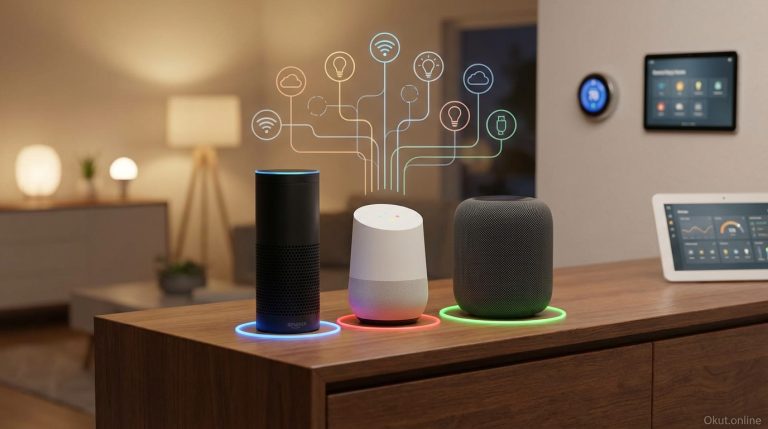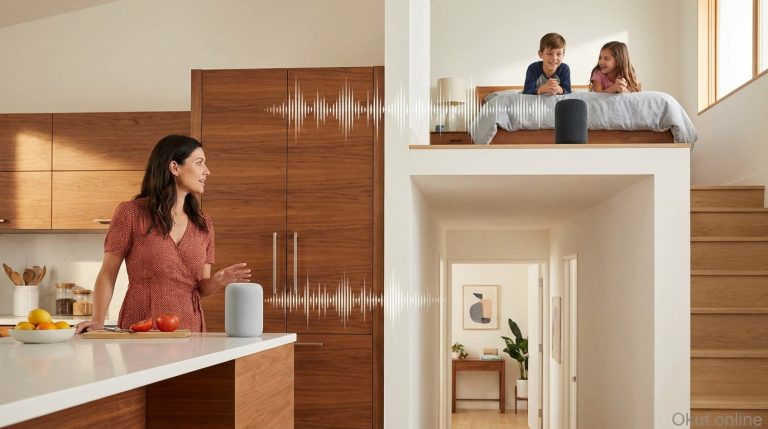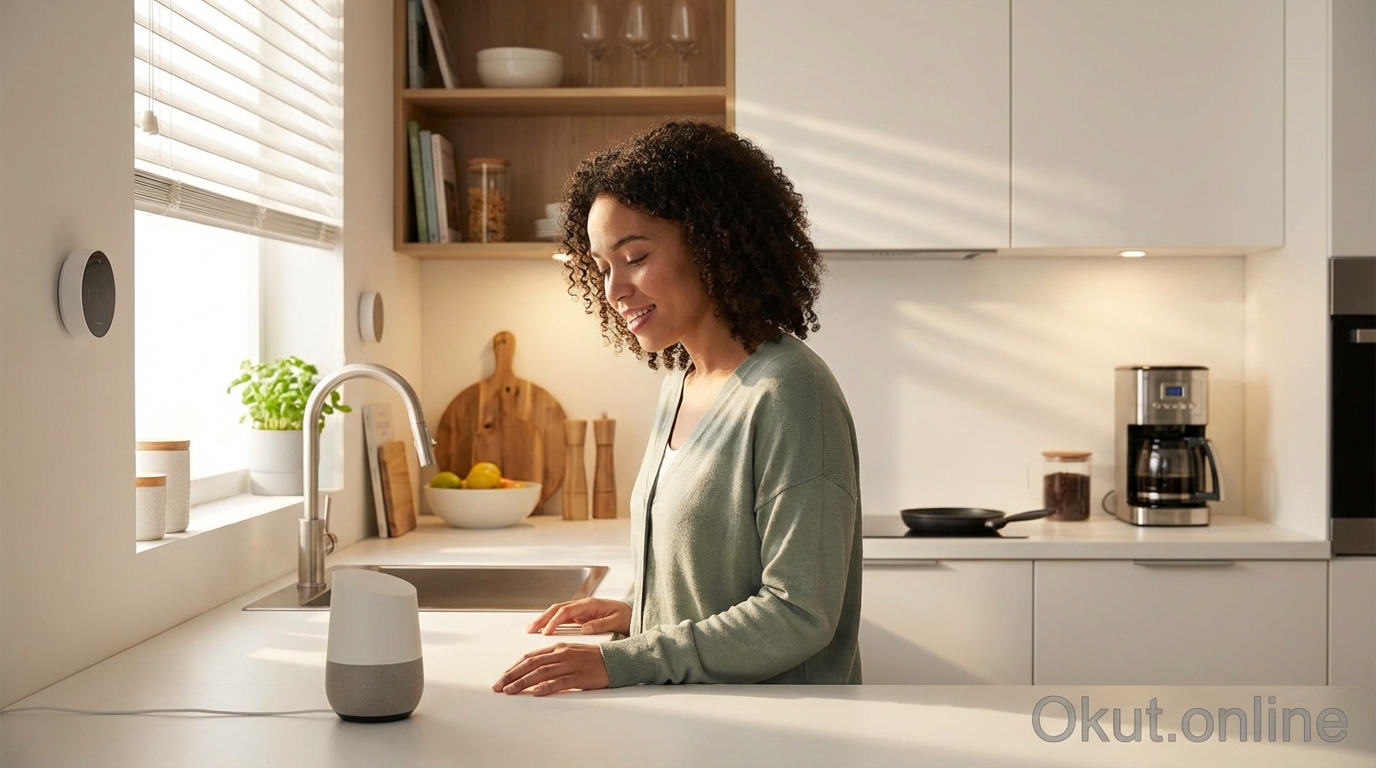
Voice assistant routines transform simple voice commands into sophisticated automation sequences, enabling single phrases to trigger multiple device actions, announcements, and smart home adjustments. In 2026, Alexa Routines, Google Home Routines, and Siri Shortcuts each offer powerful automation capabilities with distinct approaches and strengths. This comprehensive guide explains how to create effective routines on each platform, provides practical examples for common scenarios, and demonstrates advanced techniques that maximize the convenience automation provides.
I. Understanding Voice Routines
Before diving into platform-specific configuration, understanding what routines accomplish helps you design automation that genuinely improves daily life.
A. What Routines Enable
Routines combine multiple actions into single triggers, reducing interaction from many commands to one.
Without routines, your morning might require: “Turn on bedroom lights,” “Set thermostat to 70,” “Play news briefing,” “Turn on coffee maker.” With routines, “Good morning” executes all these actions simultaneously.
Beyond convenience, routines enable consistency. Night mode always arms security, locks doors, turns off lights, and adjusts thermostat—no forgetting individual steps when tired.
Routines also enable automations without voice commands—triggers can include time of day, device events, location changes, and sensor activations.
B. Routine Components
All routine platforms share similar conceptual components:
Triggers define what initiates the routine—voice command, schedule, location, or device event.
Conditions (on some platforms) determine whether the routine should execute when triggered—time of day, day of week, or device states.
Actions define what happens when the routine runs—device control, announcements, music playback, and more.
Wait/Delay actions (on some platforms) insert pauses between actions, enabling sequenced behavior over time.
II. Amazon Alexa Routines
Alexa Routines provide the most extensive automation capabilities among consumer voice assistants.
A. Creating Alexa Routines
Access Routines through the Alexa app: More → Routines → + (create new).
Routine name appears in your routine list but doesn’t affect voice trigger (that’s configured separately).
“When This Happens” configures triggers:
- Voice: Custom phrase you’ll speak to trigger the routine. “Alexa, good morning” or “Alexa, movie time.”
- Schedule: Time-based triggers with day selection, repeating patterns, and sunrise/sunset options.
- Device: Smart home device events (motion detected, door opened, temperature threshold reached).
- Location: Arriving at or leaving specified locations (requires Location Services enabled).
- Alarm: After alarm dismissal—great for morning routines timed to your actual wake-up.
- Guard: When Alexa Guard detects breaking glass, smoke alarms, etc.
“Add Action” builds the sequence:
- Alexa Says: Custom announcements, weather, daily briefing, jokes.
- Smart Home: Device control for lights, thermostats, plugs, locks, and any Alexa-compatible device.
- Music & Podcasts: Start playing from Amazon Music, Spotify, or other supported services.
- Wait: Pause between actions (useful for sequenced lighting, delayed announcements).
- News: Flash briefing or specific news sources.
- Messaging: Send announcements to other Echo devices, drop in, or send notifications.
B. Alexa Routine Examples
Morning Routine (voice trigger: “Alexa, good morning”):
- Turn on bedroom lights to 50%
- Set thermostat to 70°F
- Alexa says: “Good morning! Here’s your weather.”
- Weather report
- Wait 10 seconds
- Play flash briefing
- Turn on coffee maker (smart plug)
Leaving Home (location trigger: leaving home):
- Turn off all lights
- Lock front door
- Set thermostat to 65°F
- Arm security system (if compatible)
Movie Night (voice trigger: “Alexa, movie time”):
- Turn living room lights to 10%
- Turn TV bias lighting to blue 20%
- Turn off other room lights
- Close smart blinds (if compatible)
C. Alexa Routine Tips
Use wait actions strategically. Turning on coffee maker, waiting 5 minutes, then announcing “Coffee is ready” creates useful sequenced behavior.
Layer location triggers with schedule conditions. “When arriving home AND after 6 PM” applies arriving-home actions only in evening.
Test routines after creation. The routine may work differently than expected; adjustments often needed after real-world testing.
III. Google Home Routines
Google Home Routines emphasize natural language and Google service integration.
A. Creating Google Routines
Access Routines through Google Home app: Automations tab → Routines → Add routine.
“Starters” define triggers:
- Voice command: Custom phrases, including multiple alternatives for the same routine.
- Scheduled time: Specific times with day selection and sunrise/sunset options.
- Sunrise/Sunset: Natural lighting-based triggers with offset options.
“Actions” define what happens:
- Get info and reminders: Weather, calendar, commute, reminders.
- Communicate and announce: Broadcast to speakers, make calls.
- Adjust home devices: Smart home control for all compatible devices.
- Adjust phone settings: Volume, Do Not Disturb, ringtone changes.
- Try adding your own: Custom commands entered as text, executing as if spoken.
- Adjust media volume: Set volume levels before media playback.
- Play and control media: Music, podcasts, audiobooks, news.
Pre-built Routines for morning, bedtime, commute, and “I’m home” provide starting templates.
B. Google Routine Examples
Good Morning (voice: “Good morning” or “Hey Google, I’m up”):
- Kitchen lights to 80%
- Tell me about my day (weather, calendar, commute)
- Set volume to 40%
- Play news
- Adjust thermostat to 70°
Bedtime (voice: “Goodnight” or scheduled time):
- Turn off all lights
- Lock doors
- Set thermostat to 65°
- Set phone Do Not Disturb on
- Play sleep sounds on bedroom speaker (stop after 30 minutes)
Leaving Home (scheduled or voice trigger):
- Turn off all lights
- Lock doors
- Set thermostat to away mode
- Announce “Leaving home mode activated”
C. Google Routine Tips
Use multiple trigger phrases for natural flexibility. Add “Wake up,” “Morning,” and “Good morning” all triggering the same routine.
“Tell me about my day” combines weather, calendar, and commute into natural morning briefing without specifying each.
Household Routines let multiple household members use the same routine with personalized responses based on voice recognition.
IV. Apple Siri Shortcuts
Siri Shortcuts extend far beyond typical voice routines into comprehensive iOS automation.
A. Creating Siri Shortcuts
Access Shortcuts through the Shortcuts app (pre-installed on iOS/iPadOS).
“Add Action” builds the shortcut from extensive action library:
- Home: Control HomeKit accessories and scenes.
- Scripting: Variables, conditionals, loops, and logic for complex automation.
- Apps: Actions from installed apps that support Shortcuts (hundreds of apps).
- Web: URL requests, Safari actions, webpage content.
- Media: Music, Photos, Files manipulation.
Voice trigger assignment by tapping shortcut settings → “Add to Siri” → record trigger phrase.
Personal Automation (Automations tab) enables triggers without voice:
- Time of Day: Scheduled triggers with day selection.
- Alarm: When alarm stops (snoozed or dismissed).
- Arrive/Leave: Location-based triggers.
- Before I Commute: Proactive commute-time notification.
- CarPlay: When connecting/disconnecting from CarPlay.
- App: When opening specific apps.
- Email/Message: When receiving emails or messages matching criteria.
B. Siri Shortcuts Examples
Good Morning (voice: “Good morning”):
- Set HomeKit scene “Morning”
- Get weather → speak weather summary
- Get upcoming calendar events → speak today’s schedule
- Open News app (or speak headline summary)
Leaving Home (automation: leaving home location):
- Run HomeKit scene “Away”
- Get current location
- Calculate ETA to work
- Send message to partner with ETA
Bedtime (voice or scheduled):
- Run HomeKit scene “Night”
- Set Do Not Disturb until tomorrow morning
- Set alarm for wake time
- Open Sleep Sounds app
C. Siri Shortcuts Advanced Capabilities
Shortcuts support programming logic unavailable in Alexa or Google:
Conditionals: “If weather is rainy, suggest umbrella; otherwise, suggest sunglasses.”
Variables: Store values from one action for use in later actions.
Loops: Repeat actions multiple times with varying inputs.
User Input: Request text, numbers, or selections during shortcut execution.
Web Requests: Query APIs, fetch data, submit forms—connecting to services without official Shortcuts support.
This programmability enables complex automation beyond what other platforms offer, though with steeper learning curve.
V. Cross-Platform Comparison
| Feature | Alexa Routines | Google Routines | Siri Shortcuts |
|---|---|---|---|
| Voice Triggers | Yes (single phrase) | Yes (multiple phrases) | Yes (recorded phrase) |
| Scheduled Triggers | Yes (with day selection) | Yes (with sunrise/sunset) | Yes (with extensive options) |
| Location Triggers | Yes (arrive/leave) | Limited | Yes (detailed zones) |
| Device Event Triggers | Yes (extensive) | Limited | HomeKit triggers |
| Wait/Delay Actions | Yes (up to 4 hours) | Limited | Yes |
| Announcements | Yes (comprehensive) | Yes (broadcast) | Limited (Speak Text) |
| Music Control | Yes (multiple services) | Yes (multiple services) | Yes (Apple Music focus) |
| Smart Home Control | Excellent (widest support) | Very Good | Good (HomeKit) |
| Logic/Conditionals | Basic conditions | Basic conditions | Advanced programming |
| Third-Party App Control | Skills integration | Actions integration | Extensive app actions |
VI. Advanced Routine Techniques
Moving beyond basic routines unlocks significant additional capability.
A. Chained and Conditional Routines
Create different routines for different conditions, then trigger the appropriate one.
“Alexa, I’m leaving” during daytime might simply turn off lights and lock doors; if triggered after sunset, it could also close blinds and enable outdoor lighting.
Time conditions in Alexa Routines enable this: same trigger phrase with “Only After Sunset” condition enables split behavior.
B. Sensor-Triggered Routines
Motion sensors, door sensors, and other smart home devices can trigger routines automatically.
Motion in the hallway at night triggers dim hallway lighting. Motion sensor triggers routine; time condition ensures only night activation.
Door opening when security system is armed could trigger announcement and camera recording start.
C. Sequential Automation
Wait actions create timed sequences impossible with simple simultaneous activation.
Morning routine example with staging:
- Bedroom lights to 20% (gentle wake)
- Wait 5 minutes
- Bedroom lights to 60%
- Wait 5 minutes
- Play music at low volume
- Wait 10 minutes
- Announce that coffee is ready (if scheduled start)
VII. Common Mistakes to Avoid
- Overly Complex First Routines: Start simple—one or two actions. Add complexity after basic routines work reliably.
- Similar Trigger Phrases: “Turn on lights” and “Turn on the lights” might conflict or be heard incorrectly. Use distinctive, unambiguous triggers.
- Forgetting Testing: Routines often behave differently than expected. Test thoroughly, especially location and schedule triggers.
- Ignoring Failure Cases: What happens if the smart plug doesn’t respond? Consider whether partial routine completion is acceptable.
- Too Many Announcements: Routines that speak at length become annoying. Keep announcements brief and valuable.
VIII. Practical Tips for Routine Success
- Name Routines Clearly: “Morning Weekday” vs “Morning Weekend” beats generic names when managing multiple routines.
- Document Your Routines: Complex routine trees become hard to remember. Keep notes on what triggers what.
- Involve Household Members: Share trigger phrases so everyone knows available commands. Nothing frustrates like automation others can’t use.
- Review Periodically: Routines created months ago might not match current needs. Schedule quarterly routine review.
- Use Pre-built Templates: All platforms offer starter routines. Modify these rather than building from scratch for common scenarios.
IX. Conclusion
Voice assistant routines transform basic voice control into comprehensive automation that simplifies daily life. Alexa Routines offer the widest device support and most trigger options for smart home power users. Google Routines provide natural language flexibility and strong Google service integration. Siri Shortcuts enable programming-level complexity for advanced automation. Regardless of platform, well-designed routines reduce multi-step processes to single commands, ensure consistency in repeated actions like morning wake-up and nighttime security, and integrate smart home devices into cohesive automated experiences. Start with simple routines for your most common sequences, then expand as you discover additional opportunities for voice-triggered automation.
What routines do you use most often, and what automation would improve your daily life? Share your routine ideas in the comments!
About the Author