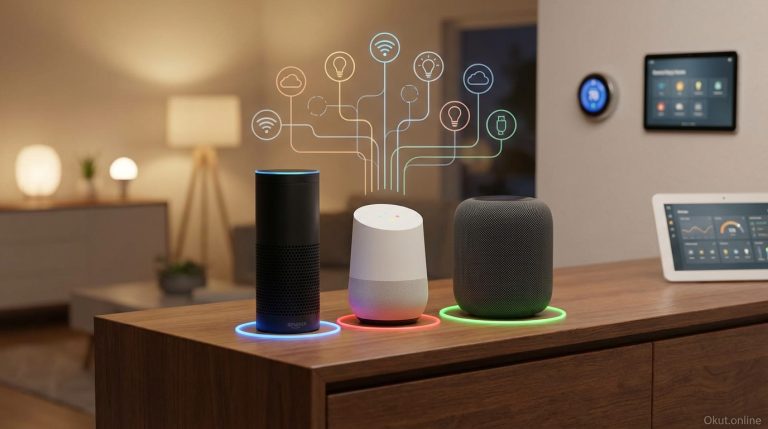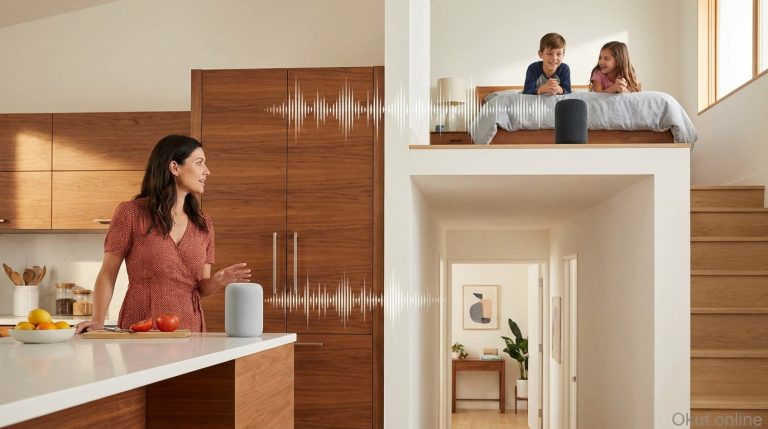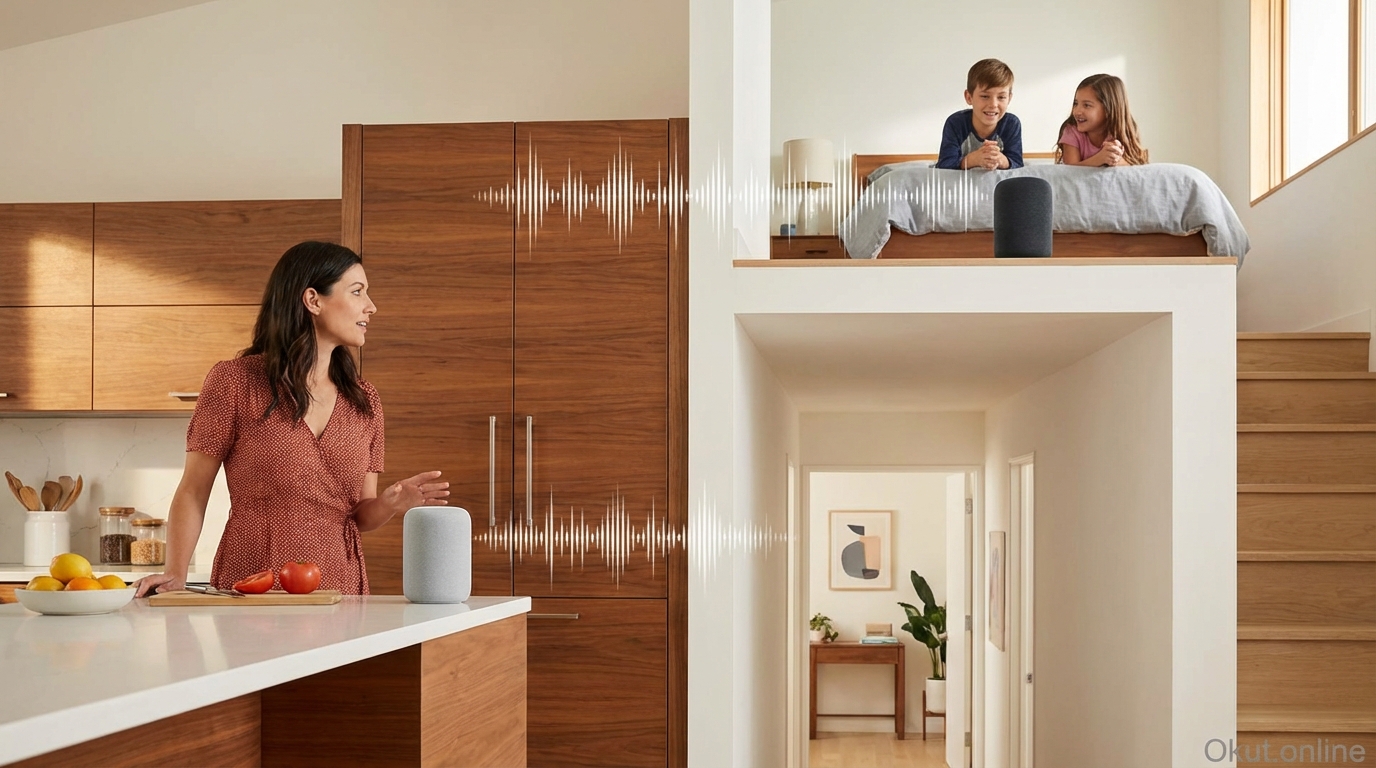
Smart speakers and displays have evolved into complete home intercom systems, enabling room-to-room communication, household broadcasts, and two-way conversations across your home without dedicated intercom hardware. In 2026, Amazon Alexa’s Drop In and Announce features, Google Home’s Broadcast, and Apple’s Intercom provide different approaches to whole-home communication. This guide compares intercom capabilities across platforms, covers setup and privacy considerations, and demonstrates practical uses that make smart home intercom genuinely useful for daily family communication.
I. Smart Home Intercom Options
Each major voice assistant platform offers intercom functionality with different capabilities and approaches.
A. Amazon Alexa Intercom Features
Alexa provides the most comprehensive intercom capabilities across its Echo device lineup.
Drop In: Initiates two-way audio (like a phone call) or video (with Echo Show devices) connection to specified Echo devices.
- “Alexa, drop in on the kitchen” connects to the kitchen Echo
- Connection happens immediately—recipient device turns on, no need to answer
- Short tone indicates Drop In is active; both parties can speak
- Video Drop In shows the camera view on Echo Show devices
Announcements: One-way broadcast to all Echo devices or specified devices.
- “Alexa, announce dinner is ready” plays your voice on all Echo devices
- Announcement can target specific rooms: “Alexa, announce to bedroom that breakfast is downstairs”
- Alexa can speak announcements in its voice or play your recorded voice
Calling: Traditional phone-style calling between Echo devices and phones with Alexa app.
- Creates ringing on recipient device; recipient must answer
- Works between Echo devices in same household or to Alexa contacts’ devices/phones
B. Google Home Broadcast
Google’s intercom functionality centers on Broadcast for one-way announcements and replies.
Broadcast: Sends message to all Google speakers/displays in your home.
- “Hey Google, broadcast dinner is ready” plays announcement on all speakers
- Recipients can reply: “Hey Google, reply I’m coming”—reply goes back to sender
- Pre-programmed broadcasts for common messages (wake up, dinner, movie time)
Device-to-device calls: Limited calling capability between Google speakers.
- Duo video calls work on Nest Hub Max
- Audio calls through Google Voice or carrier services
No Drop In equivalent: Google doesn’t offer immediate-connection Drop In-style functionality where calls connect without answering.
C. Apple Intercom
Apple’s Intercom works across HomePod, Apple Watch, iPhone, iPad, and CarPlay.
Intercom messages: Voice message sent to HomePod devices and Apple devices opted into Intercom.
- “Hey Siri, intercom I’m leaving in 5 minutes” broadcasts to all Intercom-enabled devices
- Recipients can reply from any device in the Intercom system
- Messages can target specific rooms if HomePods are assigned to rooms in Home app
Device compatibility: Works across Apple ecosystem—HomePod, iPhone, iPad, Apple Watch, CarPlay.
- Messages follow you across devices rather than requiring specific device presence
- Notification appears on iPhone/Watch if you’re not near HomePod
II. Drop In Detailed Guide
Amazon’s Drop In feature requires particular attention due to privacy implications of immediate connections.
A. Drop In Setup
1. Open Alexa app → Communicate → Contacts
2. Select a contact → Enable Drop In permissions
3. For household members, ensure they’re in your Amazon Household
4. Device-level permissions: Alexa app → Devices → select device → Communications → Drop In
B. Drop In Permissions
Drop In permissions control who can connect to each device without you answering:
- Off: No one can Drop In on this device
- My Household: Only household members can Drop In (recommended for most devices)
- Only my contacts: Contacts you’ve enabled can Drop In
Set per-device permissions appropriate to device location—more restrictive for bedroom devices, less restrictive for kitchen/common areas.
C. Drop In Privacy Features
Several features protect against unwanted Drop In access:
Visual indicator: Echo devices show green light ring during active Drop In.
Audio indicator: Chime sounds when Drop In connects before audio opens.
Gradual video fade-in: Echo Show video Drop In starts with frosted/blurred video that gradually clears, providing visual warning.
Do Not Disturb: When enabled, Drop In is blocked on that device.
“Alexa, hang up”: Ends Drop In immediately.
III. Broadcast Setup and Usage
Broadcast announcements work differently than two-way Drop In.
A. Alexa Announcements
Setup is automatic—Announcements work on all Echo devices in your account by default.
Whole-home announcement: “Alexa, announce dinner is ready” plays on all Echos.
Room-specific: “Alexa, announce to the kids’ room time to come down” plays on specified device(s).
Choose voice: Default uses your recorded voice; “Alexa, announce dinner is ready in Alexa’s voice” uses Alexa’s voice.
B. Google Broadcast
Broadcast reaches all Nest/Google Home speakers simultaneously.
Basic broadcast: “Hey Google, broadcast message” plays your voice on all speakers.
Pre-made broadcasts: “Hey Google, tell everyone it’s time for dinner” uses pre-recorded phrases.
Reply capability: Recipients say “Hey Google, reply [message]” to send response back.
C. Apple Intercom
Configure Intercom in Home app settings.
Settings: Home app → Home Settings → Home Name → Intercom
- Enable Intercom: On/Off for entire home
- Notify on: Choose which devices receive Intercom notifications
- When I’m home only / Anywhere: Location-based notification preferences
IV. Practical Use Cases
Smart intercom functionality solves real communication challenges in daily family life.
A. Mealtime Announcements
“Dinner is ready” broadcast replaces shouting through the house.
Message reaches all rooms simultaneously with clear audio.
Kids with headphones on still hear announcement through nearby devices.
B. Morning Wake-Up
Drop In to kids’ rooms to wake them avoids walking upstairs, ensures they hear you.
Two-way confirmation they’re actually awake.
Can be part of morning routine automation.
C. Working from Home
Brief announcements from home office: “I’m on a call, please keep it down.”
Family can announce lunch is ready without interrupting video calls.
D. Safety and Check-Ins
Quick check on elderly family members via Drop In.
Kids arriving home can announce their return.
Emergency communication reaches all rooms instantly.
E. Doorbell Response
When doorbell rings: “Alexa, announce someone is at the door” broadcasts throughout house.
Integration with video doorbells enables viewing from any Echo Show via Drop In.
V. Common Mistakes to Avoid
- Leaving Drop In Open to All Contacts: Only enable Drop In for people you genuinely want having immediate access to your home audio.
- Ignoring Bedroom Privacy: Consider disabling Drop In on bedroom devices or limiting to “My Household” at minimum.
- Not Teaching Household Members: Intercom features only work if everyone knows how to use them. Ensure all family members understand available commands.
- Overusing Broadcast: Constant announcements for minor things creates announcement fatigue. Reserve for genuinely useful communication.
VI. Practical Tips
- Name Devices by Room: Clear room names make commands natural—”Drop in on kitchen” beats “Drop in on Echo Dot 3.”
- Create Device Groups: Group kids’ rooms for announcements that only target specific people.
- Use Do Not Disturb: Schedule Do Not Disturb for sleep hours to block unwanted Drop Ins.
- Integrate with Routines: Include announcements in morning routines, dinner prep routines, or bedtime routines.
- Test from All Rooms: Verify announcements reach all areas clearly—audio quality varies by device and room acoustics.
VII. Conclusion
Smart home intercom functionality transforms Echo devices, Google Home speakers, and HomePods into practical whole-home communication systems. Amazon’s Drop In provides immediate two-way connection ideal for quick check-ins; Broadcast announcements reach everyone for mealtime calls and household notices; Google and Apple offer similar broadcast capability with platform-specific features. Key considerations include privacy settings appropriate for each device’s location and ensuring all household members understand available features. For families with smart speakers already in multiple rooms, intercom functionality provides valuable communication capability at no additional cost.
How do you use intercom features in your smart home, and what communication challenges would better intercom functionality solve? Share your experience in the comments!
About the Author